
Toolkit Features
Toolkit
Required: After Effects 2020
Recommend: After Effects 2022 multi-core processing for faster response and render time.
Please familiarize yourself with the following features to get the most out of this toolkit:
Essential Graphics & Essential Properties
In Use: All Elements
The Global Video Toolkit AEP uses Essential Graphics to make updates to compositions. Essential Graphics can be controlled on a global-level through the Essential Graphics Panel and on an instance-level through Essential Properties. Click here to learn more about Essential Graphics & Essential Properties.
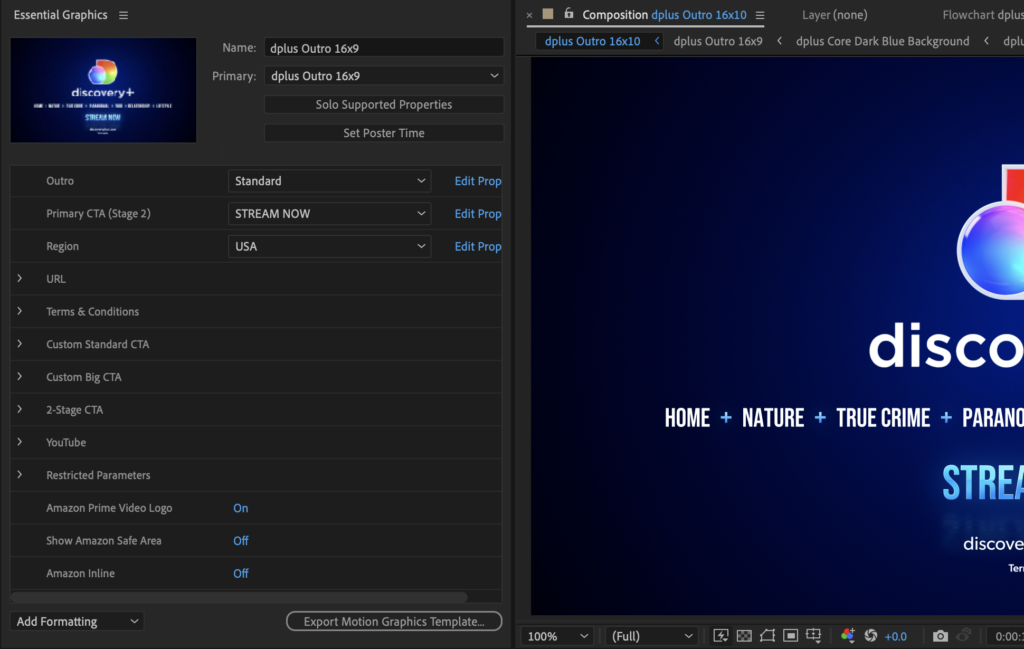
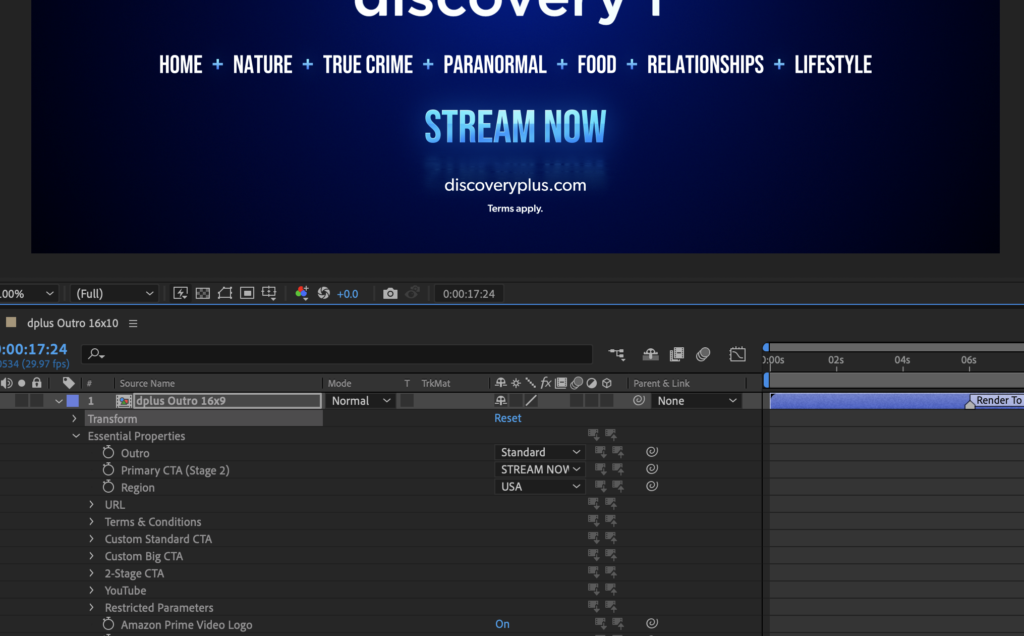
Each asset has been set up to work for an average workflow that may be creating multiple ratios of the same video at the same time. If it is likely for there to be multiple instances of an asset on the same timeline then by default they do not share global properties and should be updated through Essential Properties. Where as assets that appear only once on a timeline but most likely across multiple ratios, do share global properties and can be controlled by the Essential GFX panel. This default can be easily overridden by deselecting the “push/pull” icons in Essential Properties, which will push/pull settings to/from global properties, (Note: “Push to” will update every instance of this asset):

Protected Regions
In Use: Bugs & Text Cards
Protected Regions preserves a section of animation (e.g., animation in/out) and allows you to easily extend the duration of a precomposed element to fit your composition without affecting these sections. The protected regions appear with a blue underline on the timeline.

Media Replacement
In-Use: Bug and Title Treatment
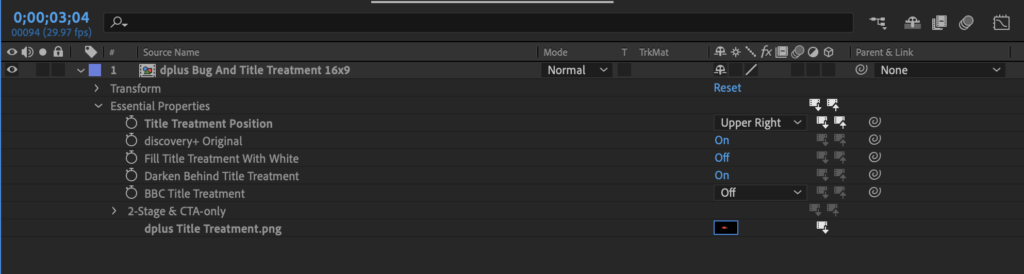
As a new feature, Media Replacement within Essential Graphics is currently restrictive to work with so we have opted to use pre-compositions to update and replace images/footage and title treatments. The only element we have built it into (along with a pre-composition alternative) is the Bug and Title Treatment and we only recommend using it in the case of a multi-show promo when you need to cut between several title treatments.
To do this you will want to create multiple instances of the Bug and Title Treatment pre-composition on your timeline and use Essential Properties to replace the title treatment by double clicking on the small image in the drop-down menu.
GPU Acceleration
The Toolkit requires GPU Acceleration to be enabled:
Select File > Project Settings, click the Video Rendering and Effects tab, and set the Use option to Mercury GPU Acceleration
16 Bit Color Space
GPU Acceleration requires a color depth is set to 16 bits per channel.
Known After Effects Bugs/Issues
The current 2020/21/22 After Effects releases have several known bugs to watch out for:
Cutting Layers with Protected Regions: Only effecting the 2022 release, pre-compositions that has Protected Regions, extended in duration and then cut, wont slice correctly. This can be overcome by precomposing the layer a second time along with any other (e.g., null) layer.
Unaligned Graphic Elements: Mainly effecting the Bug and Title Treatment, if the original line or title treatment become noticeably unaligned, simply toggle/update any setting within Essential Graphics or Essential Properties and it will correct itself.
Mogerts – Coming Soon
Motion Graphics template (MOGRTs) support for those working in a Premiere workflow is coming soon.
Avid Title Card Project – Coming Soon
A stand-alone Image/Footage and Title Treatment Title Card project for those working in an Avid workflow is coming soon.
Templates
IP single show, multi show, collection and brand text only versions are available within the artboard templates. Please click through the .PSD layer stack to find the version you need.
Artboard
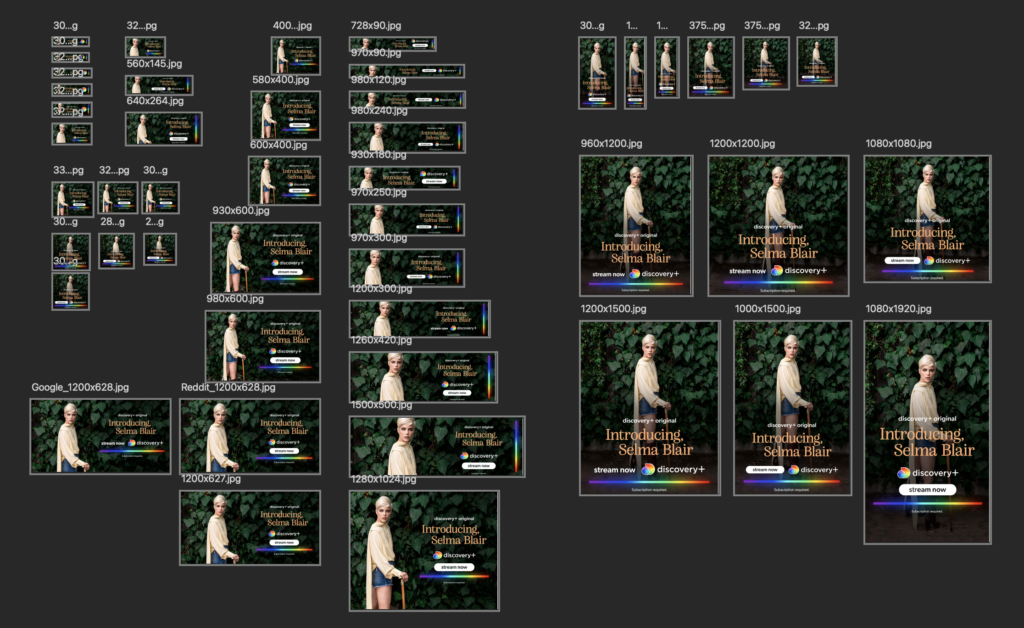
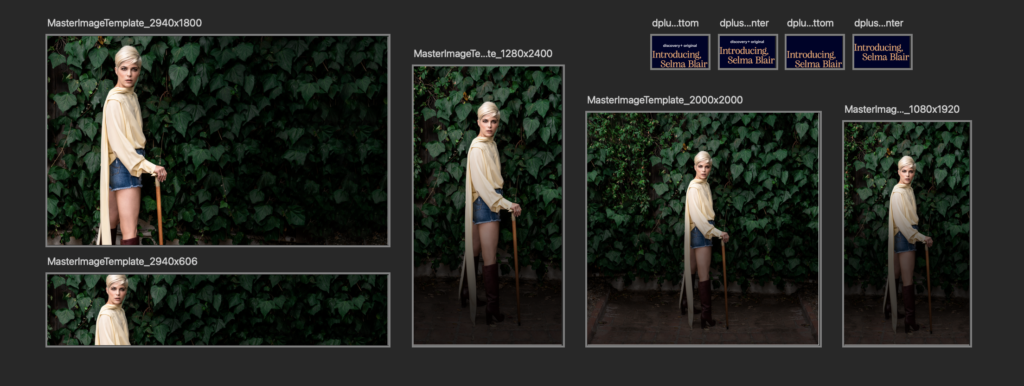
The Paid Social and Digital static templates feature all global specs on one artboard. When starting a new project we recommend deleting any media placements/specs not required for your brief.
Unlinked smart objects can all be relinked by right-clicking any layer and selecting “Update All Modified Content”.
Shared Assets
All specs within the Paid Social and Digital artboard share common assets (including image bases and title treatments), which makes updating them quick and easy. It is important to relink all assets after downloading.
Generate
To automatically generate the image assets, follow these steps:
- Select Preferences > Plugins > Enable Generator
- Select File > Generate > Image Assets
- In the Finder, select all files > Rename > Select Add Text > Insert Project Name > Select Before Name.