
Product & Platform Key Art Guide
What Is Key/Show Art?
What is Key/Show Art?At a high level, Key Art also known as Show Art, is the first creative asset a viewer engages with on a platform, and your audience’s first introduction to a film or series.
This asset is what users click-through to launch content on our products and services. Compelling key art intrigues customers to engage in our deep library of content.
Many networks create various versions of art for one title that help target specific goals each team is looking to achieve for that particular show.
We all want the same thing: to create wonderful stories that audiences know about, watch and love.
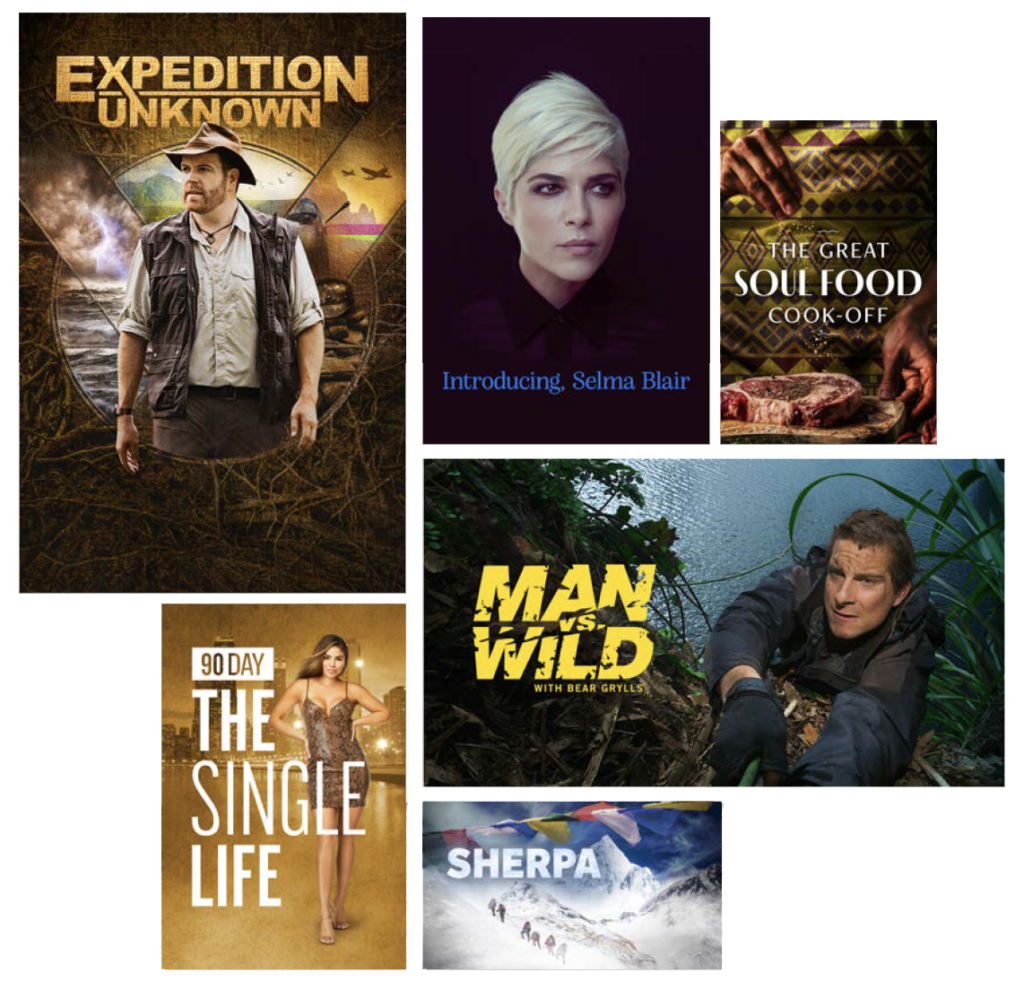
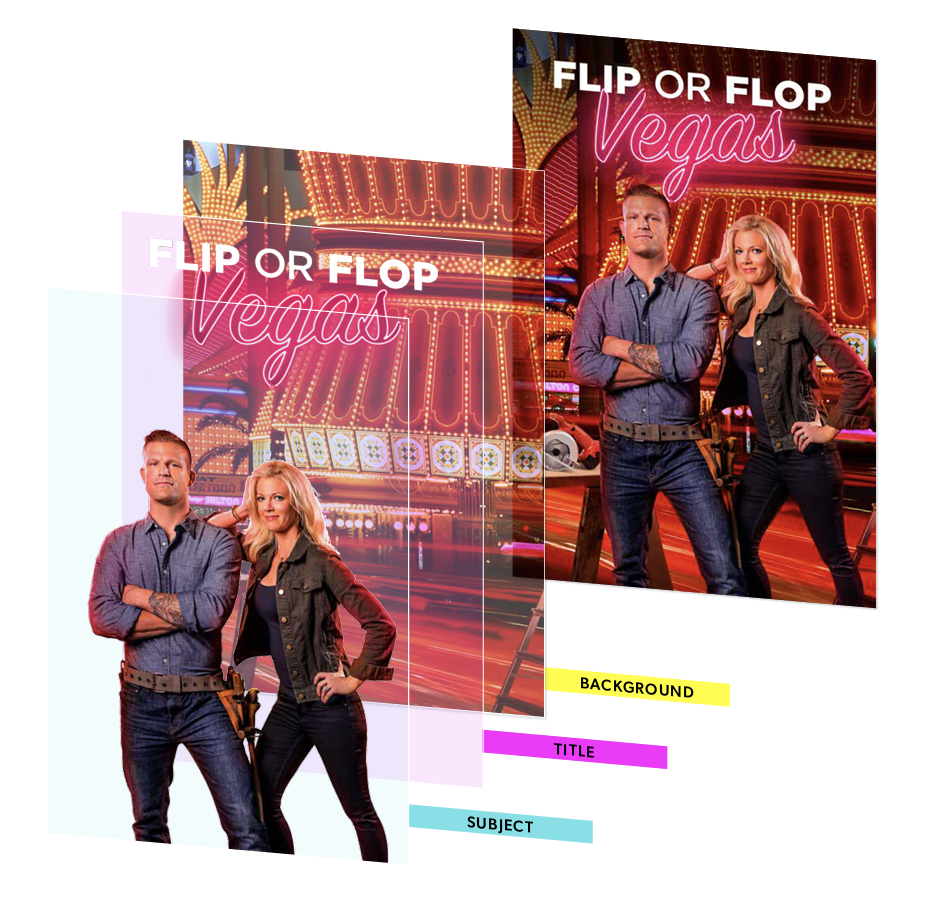
Creating Optimized Key Art for Thunder Platforms
Art optimized for our products and services is composed of a subject, title/logo and a background. Creating key art in this way allows us to scale our content to multiple products, platforms and devices, while meeting industry standards.
What goes into creating great Key Art?
• Choose images that capture the authenticity of personality and are compelling and engaging.
• Create a sense of movement and dynamism.
• Visually express a specific action, concept, or emotion.
• Be eye-catching and sow seeds of intrigue about the plot.
• Use interesting composition to drive engagement.
• Draw the viewer’s focus to a visual clue, central cast member, film title using lighting, body positioning, eye-line and color.
• Be mindful of who you are marketing to: different geographical regions have different local sensitivities, regulations, or restrictions.
Best Practices
Backgrounds
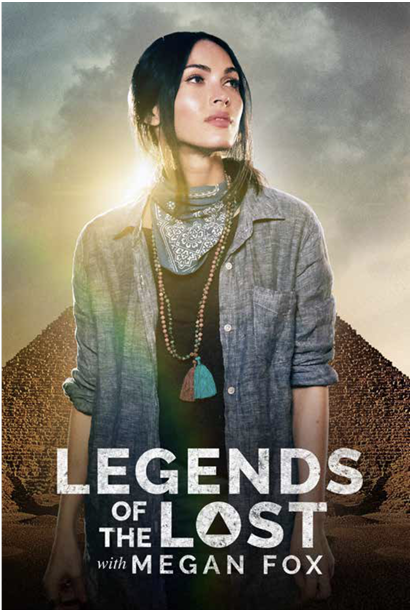
Talent-driven backgrounds with titles
• Keep subject in focus.
• Choose compositions that allow for title/logo spacing.
• Images should fill entire specified size.
• Backgrounds should be immersive, high-definition, and shouldn’t distract from the characters in focus.
• Include both primary subject (talent/subject) in the foreground.
• Focus on 1-3 talent, maximum.
• Do not add additional text elements. (E.g. extra logos, talent names, or credits)
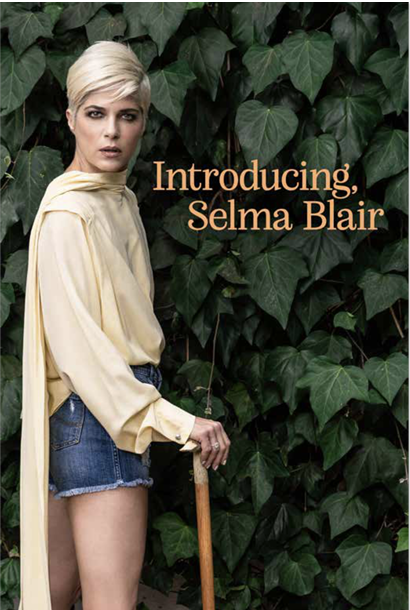
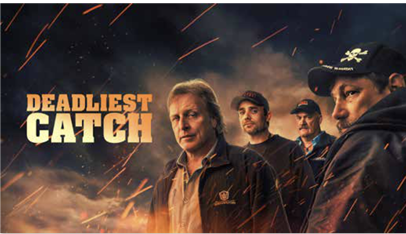

Backgrounds without titles
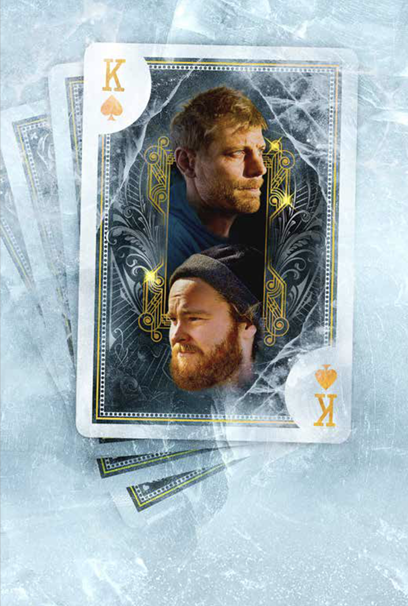
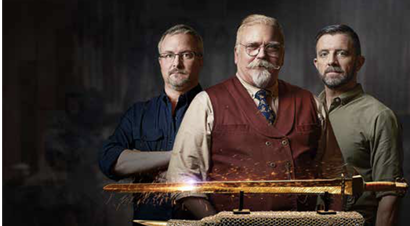
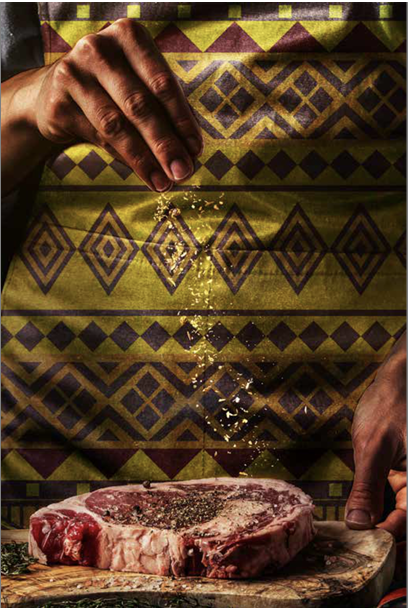
• Backgrounds should be immersive, high-definition, and shouldn’t distract from the characters in focus.
• Include both primary subject (talent/subject) in the foreground.
• Focus on 1-3 talent, maximum.
• Large cast photography is not ideal on mobile screens.
• Do not add text elements. (E.g. talent names or credits)
• Be sure to source images that have global licensing properties as Discovery+ is offered in multiple international territories.
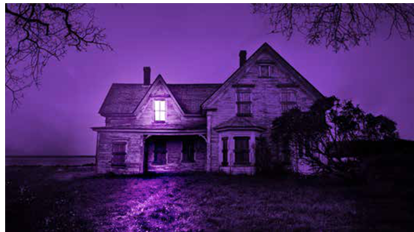
Avoid
• Poorly masked images.
• Grainy low resolution images.
• Floating characters.
• Off-balance composition without spacing for a title/logo.
• Using low resolution screen grabs or stills.
• Large cast photography that is not ideal for mobile screens.
• Adding text elements. (E.g. talent names or credits)
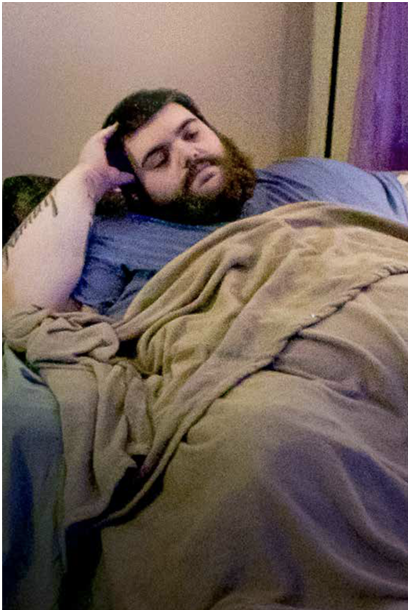
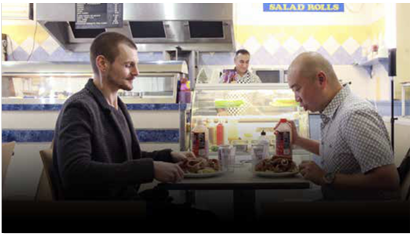

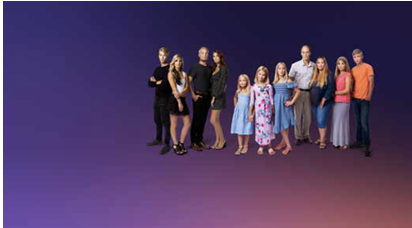
Title Treatment
Do’s
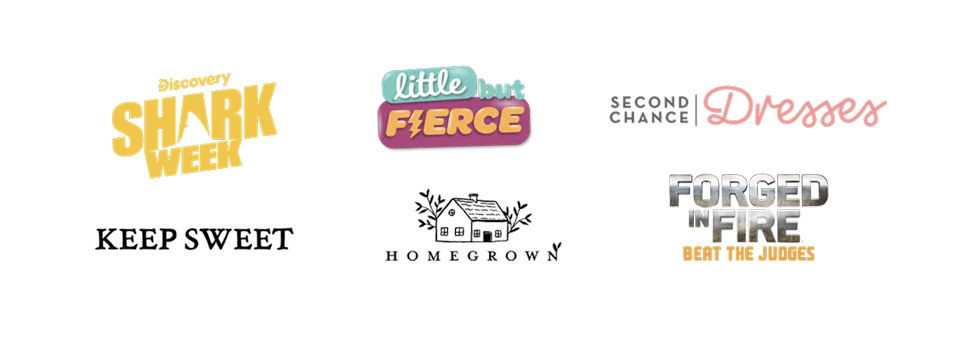
• Titles should be quite large for legibility on small mobile screens – Target 30–40% of the image.
• Ensure logos and titles contrast the background.
• Use depth and texture when appropriate.
• Clean, bold fonts work best on most devices and platforms.
• Always include a white logo for the UI overlay situations.
• Full-color logos can be used where appropriate.
• Logos can be customized by artboard within the safe areas. (e.g., stacked vs. horizontal)
• Rectangle shaped or longer stacked logos work best, especially for the 1800px width requirement for the PA-TT.png cropped logo.
Dont’s
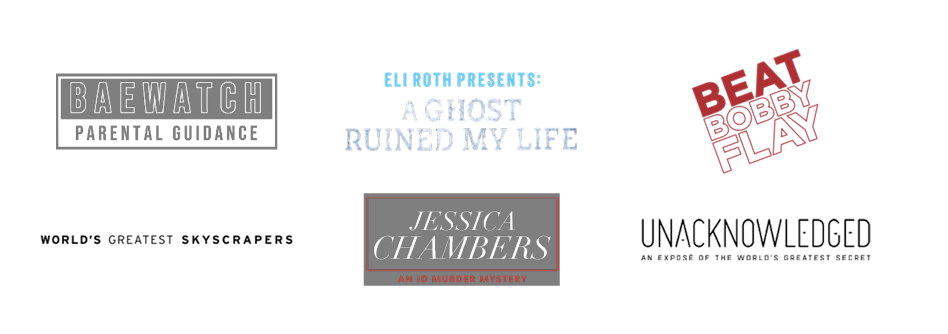
• Avoid thin fonts.
• Avoid outline style type that doesn’t contrast well with the background.
• Avoid elements that distract or become difficult to view on small screens (e.g., Thin lines or borders).
• Avoid turning logos making it difficult to read and does not lend well to the UI placement.
• Extra long horizontal logos (usually more than 3 words) work well for 16×9 and 4×3 images, but not for UI overlay logo placements throughout the discovery+ environment.
Introducing: PA-TT.PNG
Cropped UI overlay logo
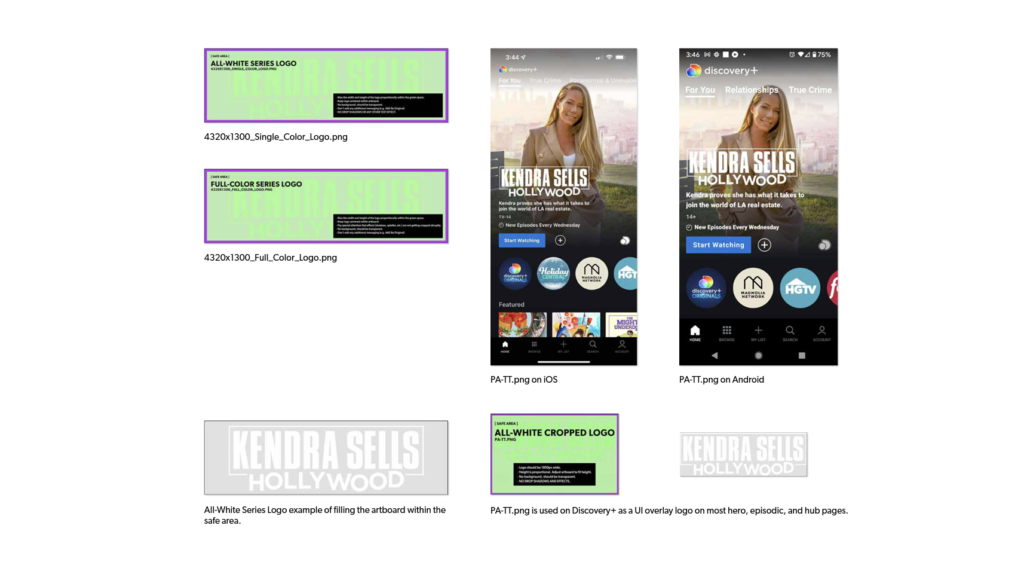
• All-white series cropped logos, PA-TT.png, are used across all platforms with the UI overlay. It is important they are clean, crisp and standout.
• The max width for the PA-TT.png asset is 1800px with a proportional pixel height.
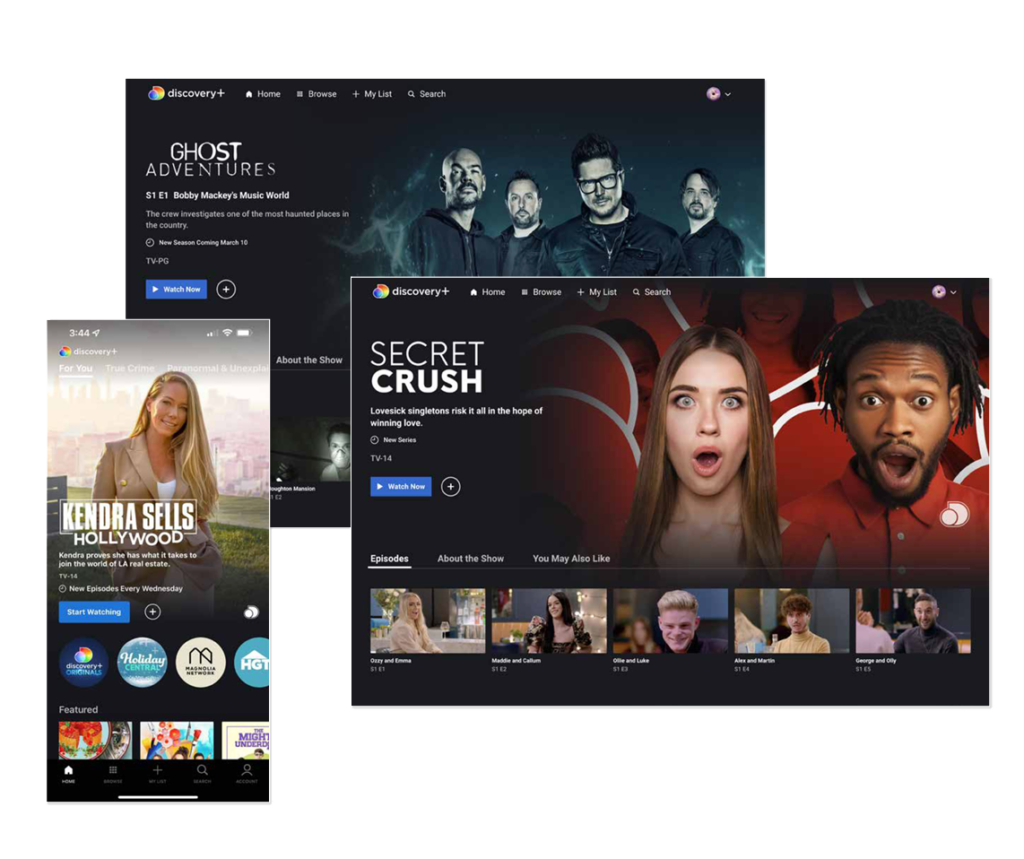
• These are examples of how the overlay logo is used on the web and mobile. For more info, see the technical specs section.
Using the Key Art Template
Optimizing Your Title Treatment for Mobile/Digital
Legibility
• Keep visual hierarchy clear.
• Keep logo lockup center-aligned and vertically centered.
• Provide multiple options for different asset placements, e.g. Stacked vertical, single-line horizontal, stacked horizontal.
• Titles should be quite large to ensure legibility on small mobile screens. Target is 30–40% of the image.
Special Effects
• Make sure that special effects (drop shadows, splatter, etc.) fades out and does not end abruptly or cut off at the artboard edges.
• Remove any special effects for all-white series and PA-TT logos.
Key Art Template Best Practices
• Use the Key Art template as a starting point.
• Do not rename artboards. They are named according to the required exported assets using the Adobe Generator plug-in.
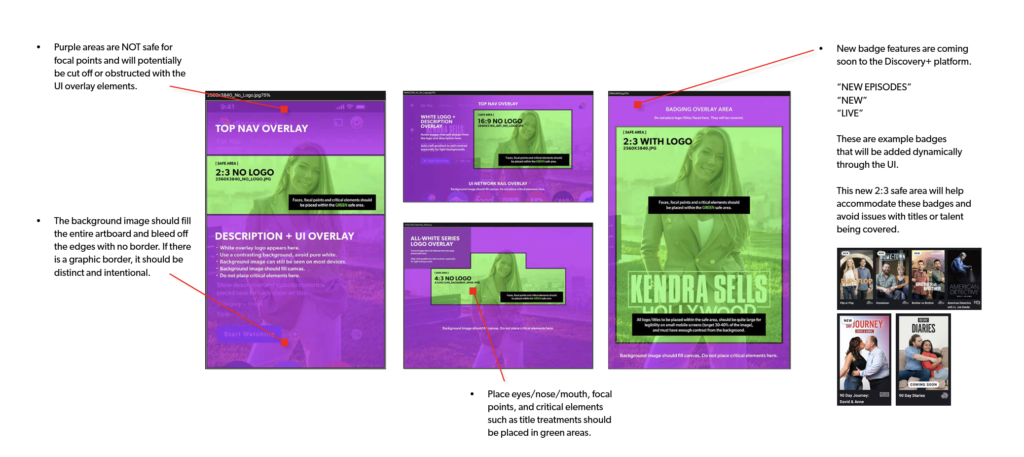
• Please be mindful of the highlighted safety areas where text and other UI elements will overlay.
• It is not necessary for you to use the Smart Object layers, but only added for convenience to automate the background and logo placements into all the image artboards.
• Add and group your artwork in folders and name each layer accordingly.
• Titles should be quite large for legibility on small mobile screens. Target 30-40% of the image.
• All assets do not need to be identical. Feel free to choose from your library of key art and high resolution production stills to ensure each asset is full-bleed and vivid with little negative space.
• Layout individual artboards, adding/subtracting elements and effects as needed. Add extended backgrounds, gradients/fades, lens flares, and logo variations (stacked vs. unstacked) as needed.
• Hide or delete safe area guides as you complete one artboard and move to the next.
• Once all artboards are completed, save .PSB and double-check all exports in the -assets folder for special effects drop offs, background issues, title treatment legibility, etc. Make any necessary adjustments and re-save.
• The default background color for each artboard is red. This helps when checking exported assets if your image is fully extended. If you see red, chances are you have not fully scaled your image beyond the artboard canvas.
Download Key Art Template here.
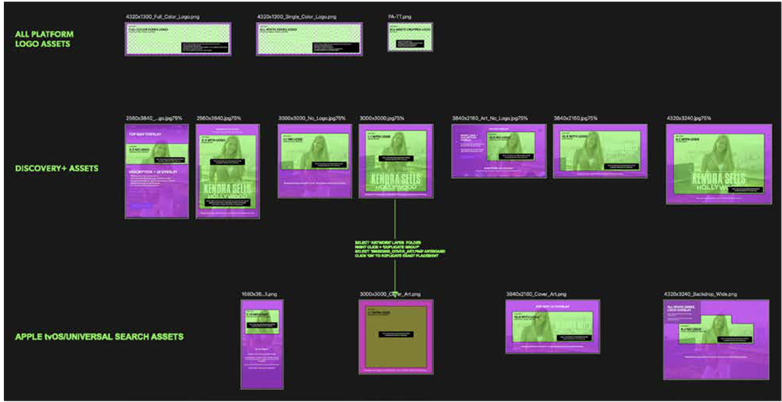
Generator Plugin
This template uses Adobe Generator which can be enabled in Photoshop. It’s a simple, two-step process:
1. Select in the menu Photoshop > Preferences > Plug-In > Check “Enable Generator”
2. With the .psb/.psd open, File > Generate > Check “Image Assets”
These options should save by default after the first time you select it in preferences. Check out the FAQs section of the downloadable guide at the top of this page for Generator Plug-in resources.
Safe Areas
US File Naming & Exporting Assets
Please note the EMEA file naming convention is slightly different. Download EMEA Key Art Template here
Saving Your .PSB Template
• Rename the .psb template > Show-Name-SeasonNumber-Version-.psb
• For example: Glow-S1-.psb For alternate versions: Glow-S1-V1-.psb, Glow-S1-V2-.psb, etc.
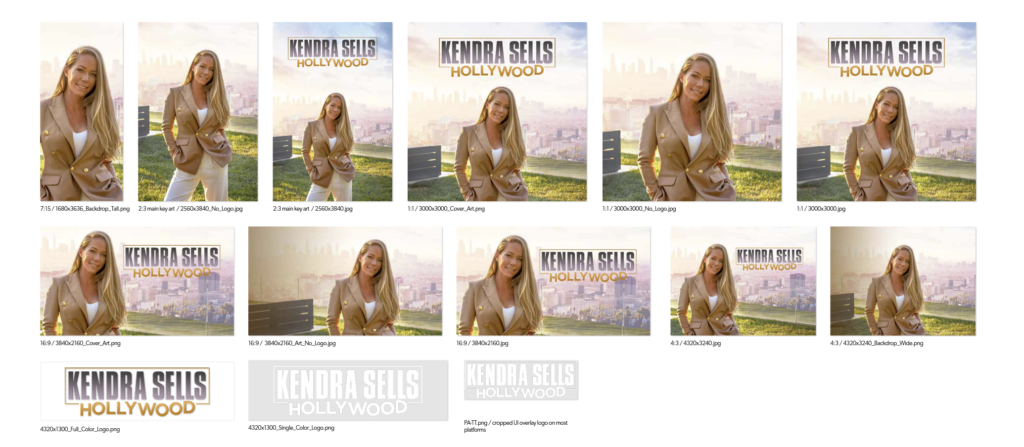
14 Exported Files Required for Delivery
(If using Adobe Generator, files export to the ‘-assets’ folder)
1680x3636_Backdrop_Tall.png
2560x3840_No_Logo.jpg
2560×3840.jpg
3000x3000_Cover_Art.png
3000x3000_No_Logo.jpg
3000×3000.jpg
3840x2160_Art_No_Logo.jpg
3840x2160_Cover_Art.png
3840×2160.jpg
4320x1300_Full_Color_Logo.png
4320x1300_Single_Color_Logo.png
4320x3240_Backdrop_Wide.png
4320×3240.jpg
PA-TT.png
Example of Renamed Files in ‘-Assets’ Folder:
Glow-S1-V1-1680x3636_Backdrop_Tall.png
Glow-S1-V1-2560x3840_No_Logo.jpg
Glow-S1-V1-2560×3840.jpg
Glow-S1-V1-3000x3000_Cover_Art.png
Glow-S1-V1-3000x3000_No_Logo.jpg
Glow-S1-V1-3000×3000.jpg
Glow-S1-V1-3840x2160_Art_No_Logo.jpg
Glow-S1-V1-3840x2160_Cover_Art.png
Glow-S1-V1-3840×2160.jpg
Glow-S1-V1-4320x1300_Full_Color_Logo.png
Glow-S1-V1-4320x1300_Single_Color_Logo.png
Glow-S1-V1-4320x3240_Backdrop_Wide.png
Glow-S1-V1-4320×3240.jpg
Glow-S1-V1-PA-TT.png
For alternate versions:
Glow-S1-V2-1680x3636_Backdrop_Tall.png,
Glow-S1-V2-2560x3840_No_Logo.jpg,etc
Deliverables
US Contacts
For questions or concerns regarding the key art creation or delivery processes, please contact:
Nicole Serrano-Scheel, Director, Product & Platform Creative